


Please note: Converting a menu list into a button grid is not a feature across all the sites we build. They are implemented if the website design and/or functionality requires them.
Creating a Button Grid using Menu of pages/subpages content elements
In some cases, we have implemented the ability the create Button Grids through the existing Menu of Pages and Menu of Subpages content elements.
You will need to create a Menu of Pages/Subpages content element or edit an existing one. See our Add Menu Guide.
While editing a Menu of Pages/Subpages content element, go to the Appearance tab. Under Frame, using the dropdown menu select Button Menu. This Frame will only appear as an option when inside the Menu of Pages/Subpages content element.
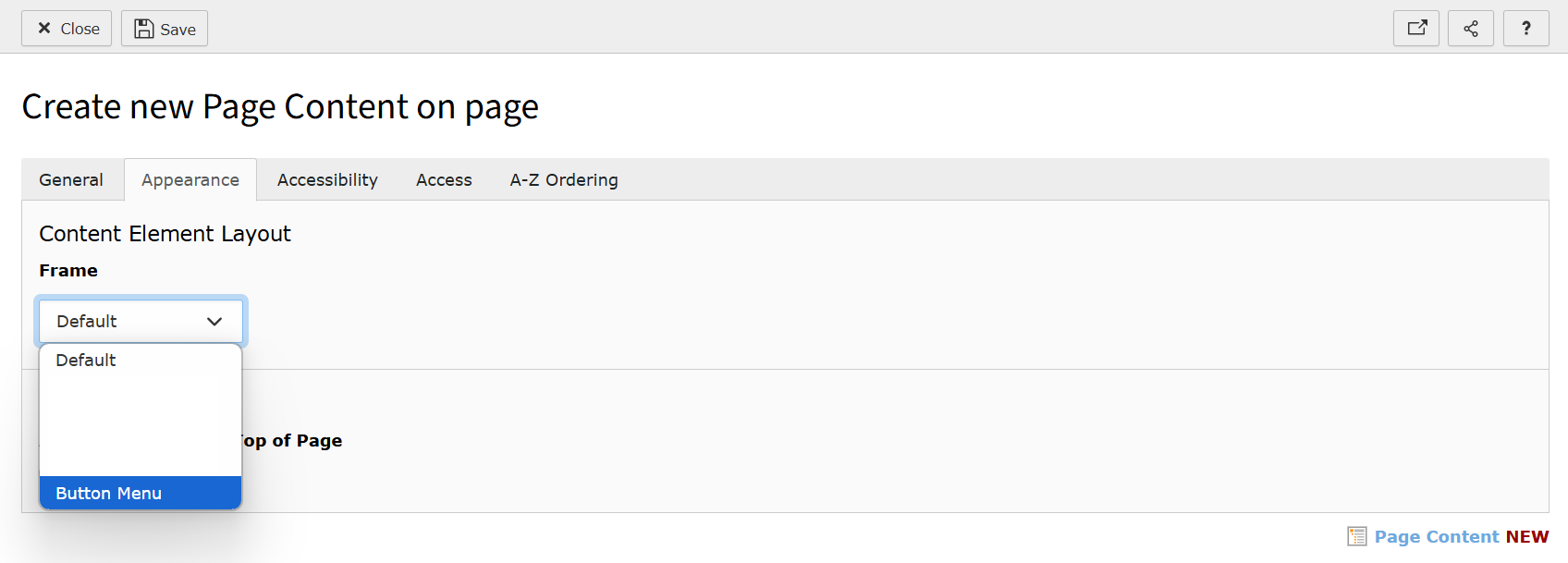
Once the Button Menu Frame is selected, click Save. This will reload the content element to show the custom tab called 'Button Styling'. Inside this tab, there is a dropdown allowing you to choose the colour you'd like all the buttons to be. Select the colour from the dropdown list.
If you don't see the 'Button Styling' tab, your website doesn't have alternative colours to select from and a colour will be automatically be set when the Button Menu Frame is applied.
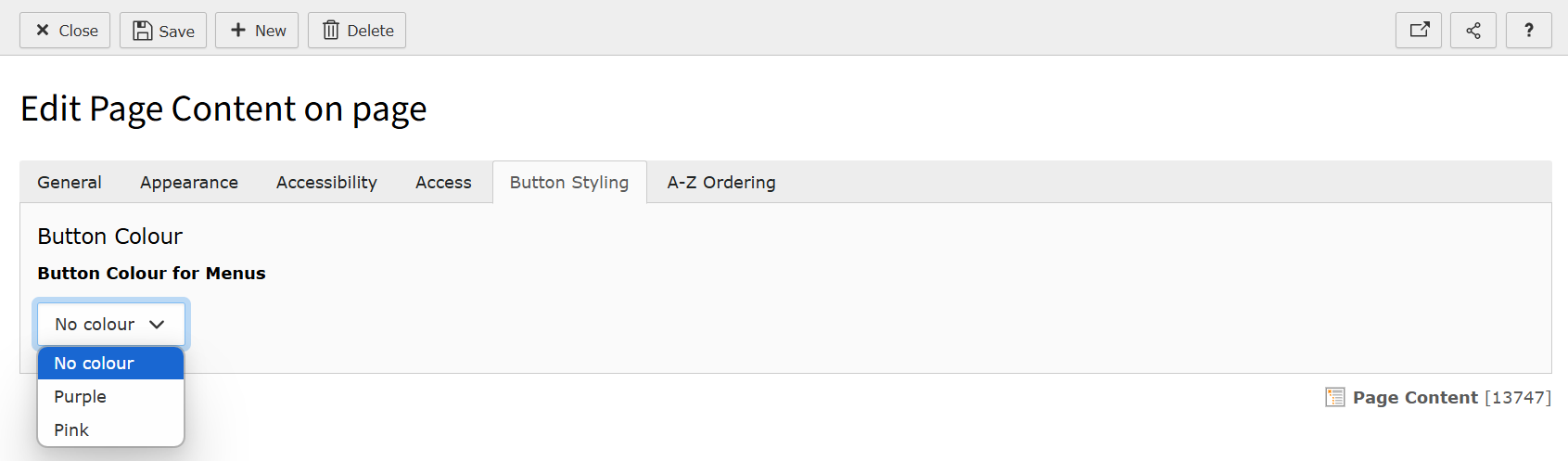
Click Save and then click Close.
Please note: If your site does offer multiple colour options and you want buttons to appear in different colours, you should use a Menu of Pages instead of a Menu of Subpages. This allows you to select specific pages directly from your page tree. For each set of colours, you will need to create a separate Menu of Pages content element.
If you want the colour sets to appear vertically rather than horizontally, as is the default, you will need to place the Menu of Pages content element instead a 4 Column Container.
Automatically order your Button Menu in alphabetical order
You can order the buttons in your Menu of Pages/Subpages content element automatically in alphabetical order. See our Add Menu Guide for details on how to enable this.