


Previewing a News article
The way in which you are able to preview your News article will depend on if you have News categories set up. If inside the folder that sits underneath your News page has:
- a parent category (usually News), follow this guide: Previewing a New article when your site has categories
- a preview category (usually News: Preview or Preview), follow this guide: Previewing a New article using the Preview category
With both, if the News article is set to Hide, you will not be able to preview the article. See our Setting the visibility of a News article section on how to toggle the visibility of an article.
Previewing a New article when your site has categories
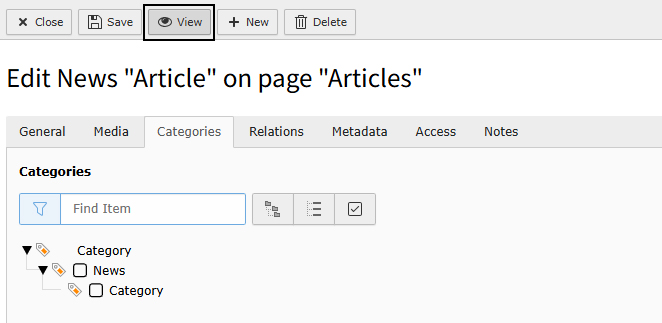
If your website has categories, to preview your article before it is shown on your website, you need to ensure you haven't assigned any catgeories to it.
If you have uncheck the categories and click View.
Note: You can also preview articles with the category set too, this gives you quick access to view your changes with the article live and displayed on the webpage.
Previewing a New article using the Preview category
If your website doesn't have any categories, by default, you will have a category called News: Preview or Preview. This is automatically set when you create a new News article and gives you the ability to preview articles before they are displayed on the webpage(s).
With the Preview category checked, click the View button when editing your article to preview how it will look once published.
Note: You can also preview articles without the Preview category set too, this gives you quick access to view your changes with the article live and displayed on the webpage.
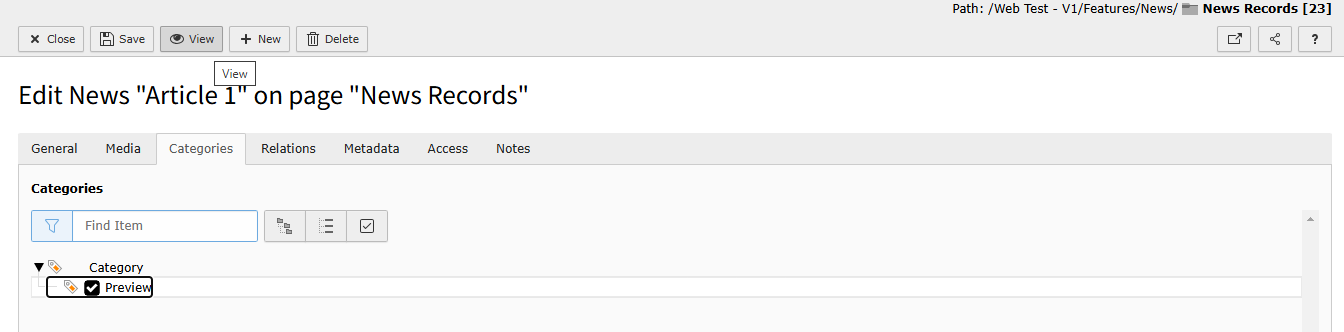
When you are ready for the article to published, you can update the categories to uncheck the Preview category.